Company Information
Company Information includes the General Information page and Address Schedule.
General Information
This page has been designed for you to enter company specific information such as company name, address, telephone number, NAIC Code, Federal ID Number, officer names, signer names, preparer information, contact information, etc.
Company data only needs to be entered once and the data will flow to each return as needed. When all data has been entered and verified, click the Save icon  on the toolbar, and the data will transfer to all active forms.
The General Information will also automatically transfer from year to year.

Address Schedule
The Address Schedule contains information for each form in the software, including mailing and physical address, payee name, contact name, contact telephone number, contact email address link, and a web link directly to the location of the form on the internet.
If the form has a mailing address and a hand-delivery address, the preferred address type can be selected with the drop-down box on the Address Option column.
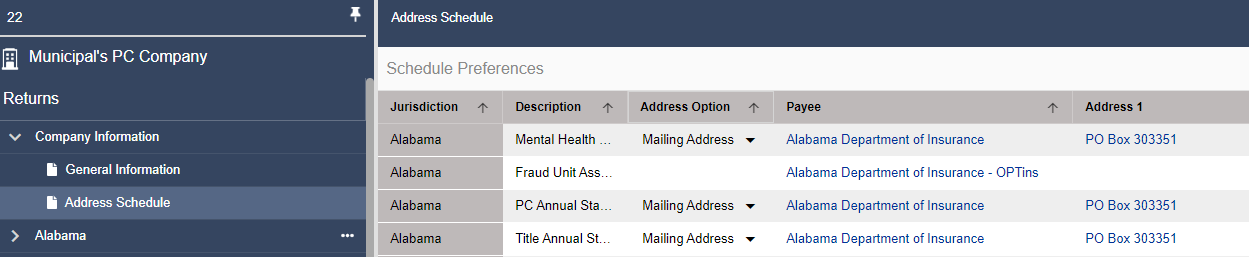
Customizable Features of the Address Schedule
Filter/Sort
Columns in the Address Schedule can be sorted by either ascending or descending alphabetical order based on the column. For example, clicking the arrow icon on the Jurisdiction Column Header will sort all columns in alphabetical order of Jurisdiction title.
Hide
You can hide columns by clicking on the eye icon and unchecking the box next to the desired column. Alternatively, you can also click on the eye icon and select or ‘Show All.’
Column Pinning
Columns can be pinned to the left-hand side so that they are always visible. Select the pin icon and check the box next to the desired column.
Advanced Filtering
You can filter columns based on a variety of search conditions. Click on ‘Advanced filtering’ in the top right, and then select either ‘And’ or ‘Or’ Group to add a new filter. Select the column you would like to filter, the filter type, and the letter or keyword to search or filter for in the value field. Once you are done, click ‘Apply.’