Tree
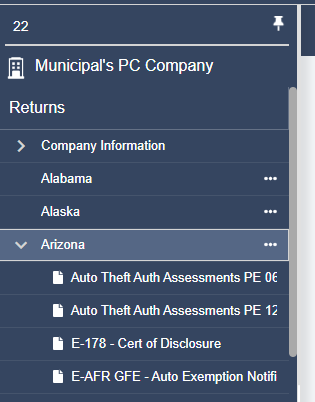
The Tree is used to access all company related information, schedules, and forms.
Company Information
The Company Information folder will include the General Information form, Address Schedule, Payment Request Schedule and Actions Report.
State/jurisdiction
All available jurisdictions will be displayed in the navigation tree. If the state has active forms, there will be a down arrow  next to the name of the state; otherwise, no forms have been activated for that state.
To activate a jurisdiction, right click on the jurisdiction name in the tree, and select “Activate/Deactivate.”
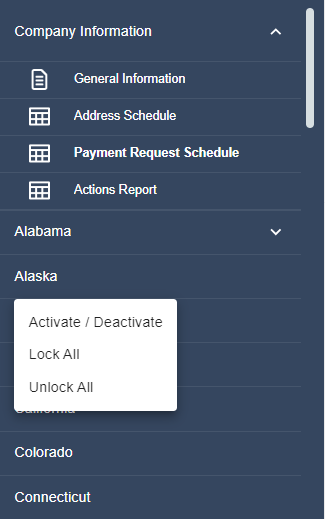
This will bring up a list of inactive forms for that jurisdiction.
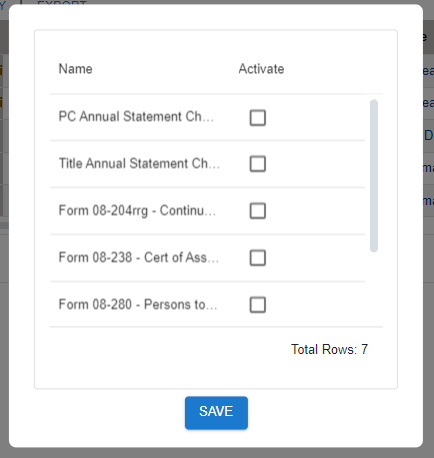
To activate a form, check the box next to the desired form and click “Save.” You can activate multiple forms at the same time, by checking the boxes next to any number of desired forms and then selecting “Save.”
Once a form is activated, it will be visible in the tree. This allows the user to view only those forms activated by the company in the active workspace. A jurisdiction’s forms can be expanded and collapsed by using the arrow to the right of the jurisdiction name.
If an Active Form is no longer needed, it can be deactivated by right-clicking on the
jurisdiction, and selecting “Deactivate.” A popup will appear asking you to confirm your decision. To deactivate multiple forms at a time, right click on any form or on the jurisdiction name. A selection box will appear. Uncheck the boxes for the desired form(s) and then click “Save.” A popup will appear asking you to confirm your decision.
Warning: Deactivating a form will delete all data entered into the form. The form can be activated again, but previously entered data cannot be recovered.