Returns
Municipal is a premium tax compliance software product that enables you to prepare local premium tax returns more effectively and efficiently.
Entering Data
To begin working in Municipal, you must first input data into the Input Schedule. To do this you may import data, copy and paste data, or manually type in data.
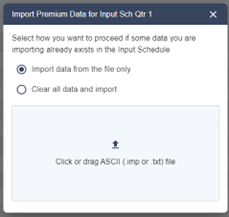
1. Importing Data: To import right click on the input schedule and select import premium data, then it brings up a dialogue box
Two options:
- Import data without clearing out any existing information
- It will clear all existing data and then import your file
2. Copy and Paste: To copy and paste data from an excel document, you can mass-select your data in Excel and copy, then paste into the Input Schedule.
3. Manual Entry: Type into a particular jurisdiction row.
4. Entering data into a jurisdiction will activate that jurisdiction in the tree on the left.
Activating Jurisdictions
To activate a jurisdiction without inputting data, right click on the Municipal Returns bar just below the Company Information section and select “Activate”. A pop up will generate a list of all jurisdictions in Kentucky. Select which jurisdictions you want activated and click “Activate” at the bottom. The jurisdictions will activate and populate in the tree below Company Information.
Additional features of this menu include lock and unlock jurisdictions, download all to pdf, and set status. By right-clicking on a jurisdiction, any of these actions can be taken.
- Lock/Unlock a Jurisdiction- Right-click on the jurisdiction of your choosing and select to lock or unlock it. Locking will allow you to still view it, but changes cannot be made until it is unlocked. This prevents errors and unauthorized changes. To lock/ unlock individual return, right click on the return and choose Lock or Unlock.
- Download All to .pdf- You may want to download all of your returns for a jurisdiction for your own file-keeping or for printing purposes. You can select Download all Municipal Returns to download all of the returns; you can select Download all Payment Requests to download all of the payment request forms.
- Set Status- Right-click on the jurisdiction and select to set the status of the return as is pertinent from the available list of statuses.
Municipal Options
Each state has a different set of options. You can access the options dialog by clicking on the Options icon. After you change the options, click the SAVE button in the dialog.

Kentucky
Assess the tax on the policyholder. If this option is selected, the amounts in column 3 will be added to the totals in column 5. This option does not affect the tax liability.
Assess a Collection fee on the policyholder. If this option is selected, a collection fee will be calculated in column 4. The amount will be added to the totals in column 5. This option does not affect the tax liability.
Report Code A and B city premiums to County. After selecting this option, premiums from cities listed in the KY Office of Insurance Tax Code Descriptions having a tax code of A or B will automatically flow to the county form. After selecting this option, you will not have to input city premiums into the line for the county return (input schedule). Any additional premiums reportable to the county alone must be manually input or listed in the ASCII file. Please note: This option cannot be used if the ASCII file you are importing was created by Premium Pro Allocator.
Louisiana
Use tax schedule rate from LRS 22:833 when calculating all municipalities. Select this option to calculate the tax for all municipalities using the schedule prescribed by state statute.
Allocate Variance from Form 1076 Page 4 Line C
- Allocate to positive premiums only. Select this option to allocate the Form 1076 variance over municipalities with positive premiums only.
- Allocate to positive and negative premiums. Select this option to allocate the Form 1076 variance over all municipalities.
One - Sixth investments are in Louisiana will reduce the tax payable to 1/3 of the regular tax. This option should be checked if 1/6 of the total admitted assets of the payer are invested and maintained in qualifying Louisiana investments (LRS 22:832(B)). A message will print on the return indicating that 1/3 of the standard tax is paid.
Plate Glass or Steam boiler Inspection Insurers. Plate glass and steam boiler inspection insurers should select this option. Selecting this option generates a tax 1/3 of the standard tax. A message will print on the return indicating that 1/3 of the tax is paid.
Use Life Code rates when a P&C or Risk Company has A&H premiums. When selected, the rate schedule used to generate a tax for a P&C or Risk company will be the rate schedule used for a life company. For example, The P&C code tax schedule for Abita Springs is X, but if the option is select, the Life code tax schedule of A will be used instead.
Digitized Signature
To create a digitized signature, open a return and click on the signature line. A popup will generate providing options for you to create your signature. In Stratus, you can create your own digitized signature, and it will be available for your current and other returns.
Municipal Return Status
An icon appears next to each form name in the tree, identifying the current status of the form.
 Updated. The form has been updated and is ready for filing.
 Not Updated. The form should not be filed with taxing authority until it has been updated and/or approved.
Additional Features
To view more than one schedule or form at a time, open both you want to view, and then right click on either tab in the open-tabs bar and select ‘Open in New Tab. This will allow you to view two different schedules or forms, or two identical forms from differing years, at the same time.
Zoom: In the middle top of the screen, there is a zoom in and out feature. Click on the down arrow, the plus sign, or the minus sign to make your desired adjustment.
The icon bar on the right of each open schedule or form provides you with the following options:
- Open Prior Year’s Return: To utilize the split screen with a prior year’s return, click on the Prior Year’s Return icon once you have a form open.
- Instructions: Click on the Instructions icon for state statutes and filing instructions.
- Download: Select download if you want to download the form you are working on to a .pdf to your own computer. You can find it in your Downloads folder.
- Payment Request: Click this form to access General Ledger descriptions, payee information, account number, cost center, and payment amount in one condensed form for your interdepartmental purposes to request payment.
- Attachment: Select the Attachment Icon, then drag and drop or click the upload button to upload your attachments.
- Notes: Add a note to your return by clicking the Notes icon, typing your note, and clicking the check box to save it. You can select a particular field for which the note is meant to be affiliated.