Forms
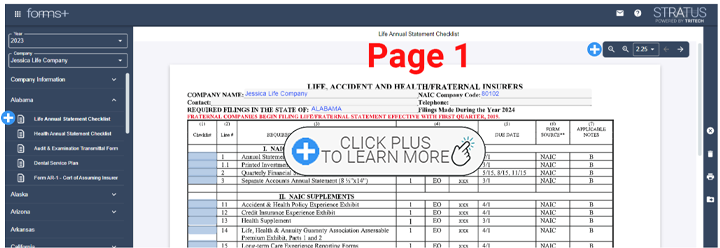
Click on the active form in the Tree to open it. See the topics below to learn about form features.
Form Name
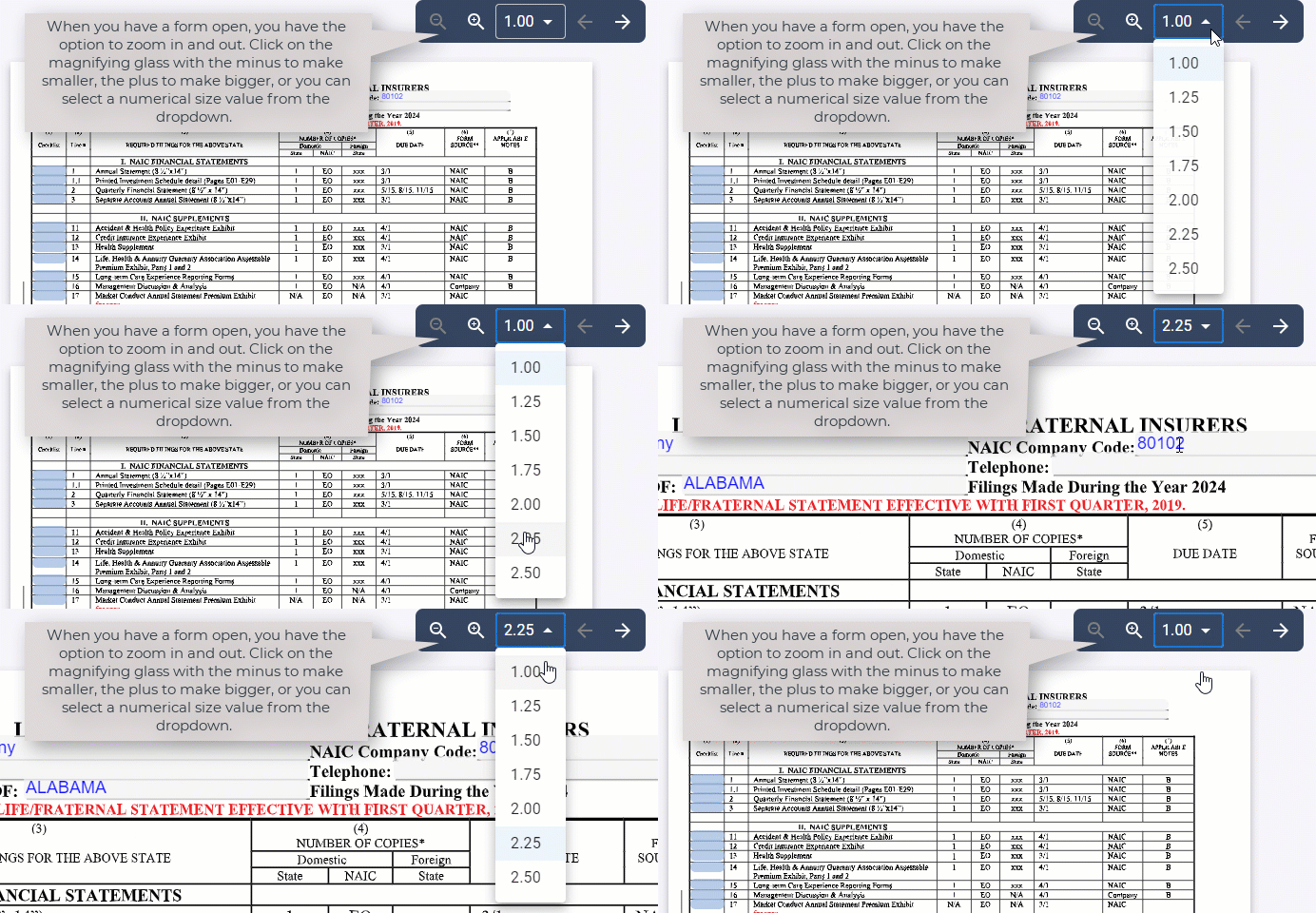
When you open a form, the name of the form will be located at the top of the page. To the right, you have the option to zoom in or out based on your preference, as well as click through the pages of the form using forward/backward arrows.
Zoom
Form Status
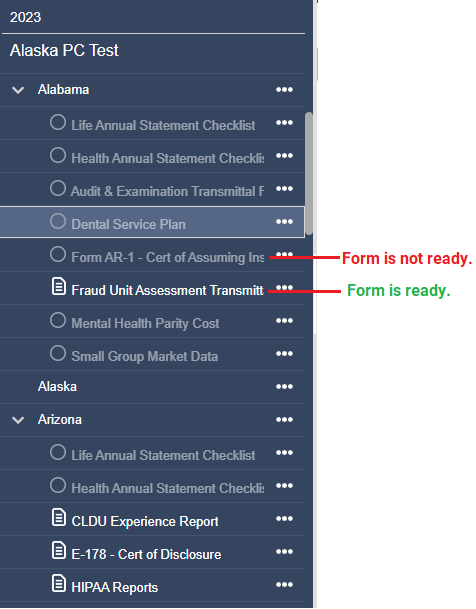
When the title of a form in the tree is gray, the form is not yet updated. TriTech works to update these as soon as information is released from each jurisdiction.
When the title of a form in the tree is white, it is updated and ready for use. See below example.
Form Fields
There are two types of fields that are visible on all forms.
- Blue (UI): User Input fields. These fields are blank and are to be filled out by the user.
- Pink (Calc): Calculation fields. Pink colored fields are calculated fields, meaning that Premium Pro calculates the corresponding data for that field and returns a value to it. Pink fields are also used to roll over specific data from year to year, such as unique company identification number or the amount reported on a particular line of a return from the previous year.
- By default, the text or numbers in the Calc fields are blue. If a value in one of these fields is overridden, the color of the text or numbers will change to red. To undo this override, highlight the value in the field and press the “Delete” button on your keyboard. This will restore the text that was previously there. An override will appear in the Actions Report.

Once a form is open, you can enter the required data in the blue user input fields. The pink fields either have data already pre-filled from the general information or another related form, or have calculated automatically based on data entered.
In Stratus, the data is automatically saved when you enter them on the forms so that you don’t need to manually save them.
To view multiple forms at the same time, right click on the form in the tree, choose either ‘Open link in new tab’, or ‘Open link in new window’. If you want to see forms side-by-side, the new window option will make this easier. When you want to see the same form from the prior year, you can open a new tab or window and then select the form in the prior year of your choice.
Forms with Return Instructions
Forms that have Return Instructions will have an additional icon info icon on the toolbar. Click this icon to view, and a new window will open to display the Return Instructions. See more about icons here.